
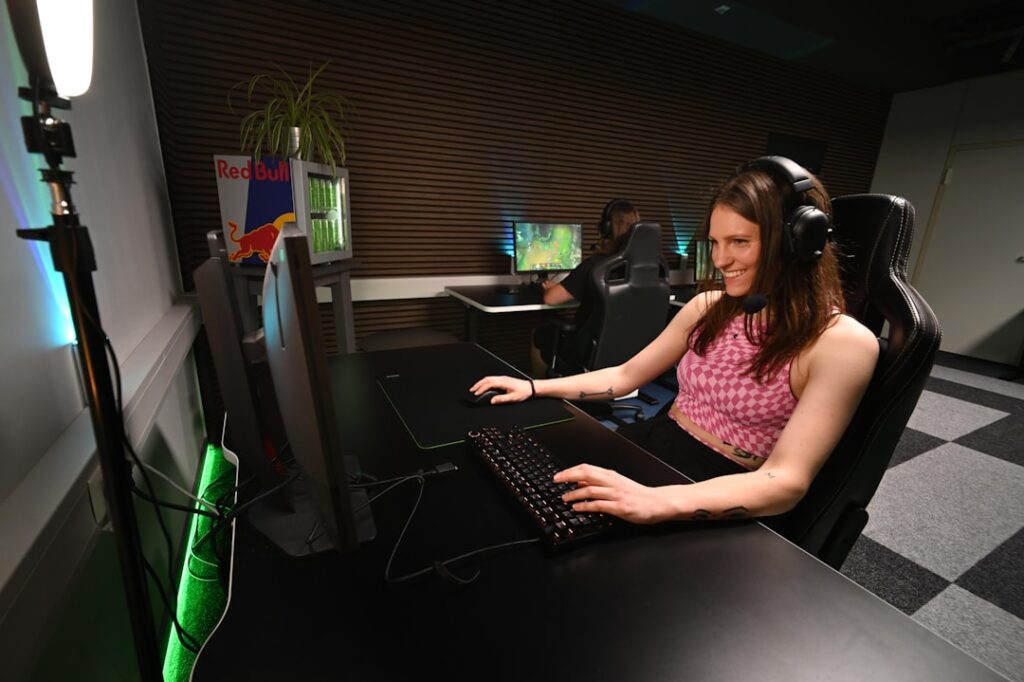
To optimize your gaming experience or enhance your computer’s performance for demanding applications, a solid understanding of your PC’s hardware is essential. The core components of a computer include the central processing unit (CPU), graphics processing unit (GPU), random access memory (RAM), storage drives, and the motherboard. Each of these elements plays a critical role in determining how well your system performs under various workloads.
For instance, the CPU is often referred to as the brain of the computer, executing instructions and managing tasks. A powerful CPU can significantly improve performance in applications that require heavy calculations, such as video editing or 3D rendering. The GPU, on the other hand, is crucial for rendering graphics and handling visual output.
In gaming, a high-performance GPU can make a substantial difference in frame rates and overall visual fidelity. RAM serves as temporary storage for data that the CPU needs to access quickly, and having sufficient RAM can prevent bottlenecks during multitasking or when running memory-intensive applications. Additionally, understanding the specifications of your motherboard is vital, as it determines compatibility with other components and can influence upgrade paths.
Knowing the capabilities and limitations of each hardware component allows users to make informed decisions about upgrades and optimizations.
Key Takeaways
- Understanding your PC’s hardware is essential for optimizing its performance and troubleshooting issues.
- Updating your graphics drivers regularly can improve gaming performance and fix graphical glitches.
- Overclocking your CPU and GPU can boost performance, but it also increases heat output and power consumption.
- Managing your PC’s temperature is crucial for preventing overheating and hardware damage.
- Utilizing SSDs can significantly reduce load times and improve overall system responsiveness.
- Adjusting in-game settings can help achieve better performance without sacrificing visual quality.
- Monitoring your PC’s performance can help identify bottlenecks and optimize system resources.
- Upgrading your PC’s components, such as adding more RAM or a faster GPU, can provide a significant performance boost.
Updating Your Graphics Drivers
Benefits of Updating Graphics Drivers
Regularly updating your graphics drivers can lead to significant improvements in frame rates, reduced latency, and enhanced visual quality. Manufacturers like NVIDIA and AMD frequently release driver updates that not only fix bugs but also optimize performance for new games and applications.
How to Update Graphics Drivers
To update your graphics drivers, you can visit the manufacturer’s website or use dedicated software tools that automatically check for updates. For instance, NVIDIA’s GeForce Experience and AMD’s Radeon Software provide user-friendly interfaces for managing driver updates.
Best Practices for Driver Updates
It’s advisable to perform these updates regularly, especially before launching a new game or application that may benefit from the latest optimizations. Additionally, some users may prefer to roll back to previous driver versions if they encounter issues after an update, highlighting the importance of understanding how driver changes can impact overall system performance.
Overclocking Your CPU and GPU
Overclocking is a technique used to boost the performance of your CPU and GPU beyond their factory settings. This process involves increasing the clock speed of these components, which can lead to higher performance in demanding applications and games. However, overclocking requires careful consideration and a good understanding of your hardware’s capabilities. Not all CPUs and GPUs are created equal; some are designed with overclocking in mind, while others may not handle increased speeds well.
To successfully overclock your CPU or GPU, you typically need to access the BIOS or use specialized software tools. For CPUs, tools like Intel’s Extreme Tuning Utility (XTU) or AMD’s Ryzen Master allow users to adjust clock speeds and voltages safely. For GPUs, software such as MSI Afterburner provides a user-friendly interface for tweaking settings.
It’s crucial to monitor temperatures during this process, as increased clock speeds can lead to overheating if not managed properly. Overclocking can yield impressive performance gains, but it also carries risks such as system instability or hardware damage if not done correctly.
Managing Your PC’s Temperature
| Temperature | Optimal Range | Actions |
|---|---|---|
| CPU | 30-60°C | Ensure proper airflow, clean cooling fans |
| GPU | 30-80°C | Monitor usage, adjust fan speed |
| Overall | Below 80°C | Use cooling pads, avoid overclocking |
Effective temperature management is vital for maintaining optimal performance and prolonging the lifespan of your PC components. High temperatures can lead to thermal throttling, where the CPU or GPU reduces its performance to prevent overheating. This phenomenon can negate any benefits gained from overclocking or high-performance settings.
To manage temperatures effectively, users should ensure proper airflow within their cases by organizing cables neatly and using high-quality fans or liquid cooling solutions. Monitoring software can provide real-time temperature readings for various components, allowing users to identify potential overheating issues before they become critical. Tools like HWMonitor or Core Temp can help track temperatures under load conditions.
Additionally, regular cleaning of dust from fans and heatsinks is essential, as dust accumulation can impede airflow and trap heat. For those looking to take temperature management a step further, investing in aftermarket cooling solutions—such as larger heatsinks or liquid cooling systems—can provide significant improvements in thermal performance.
Utilizing SSDs for Faster Load Times
Solid State Drives (SSDs) have revolutionized data storage by offering significantly faster read and write speeds compared to traditional Hard Disk Drives (HDDs). This speed translates into quicker boot times, faster application launches, and reduced load times in games. For gamers and professionals who rely on quick access to large files, upgrading from an HDD to an SSD can dramatically enhance overall system responsiveness.
When selecting an SSD, users should consider factors such as form factor (2.5-inch SATA vs. M.2 NVMe), capacity, and speed ratings. NVMe SSDs are particularly noteworthy for their superior performance due to their direct connection to the motherboard via PCIe lanes, allowing for much higher data transfer rates than SATA SSDs.
Installing your operating system and frequently used applications on an SSD can lead to noticeable improvements in daily tasks and gaming experiences alike. Furthermore, many modern games are designed with SSDs in mind, often featuring longer load times on traditional drives.
Adjusting In-Game Settings for Better Performance

Understanding the Impact of Graphical Options
Modern games offer a wide range of graphical options that can be adjusted to balance visual fidelity with performance.
By tweaking these settings based on your hardware capabilities, you can achieve smoother gameplay without sacrificing too much visual quality.
Customizing Settings for Optimal Performance
For instance, lowering shadow quality or disabling anti-aliasing can yield substantial performance gains while still maintaining an enjoyable visual experience. Many games also offer preset configurations—ranging from low to ultra—that automatically adjust settings based on your hardware specifications. However, manual adjustments allow for more granular control over performance versus quality trade-offs.
Leveraging Tools for Optimized Performance
Additionally, utilizing tools like NVIDIA’s GeForce Experience can help optimize game settings based on your specific hardware configuration. This can further enhance your gaming experience by ensuring that your game is running at its best.
Monitoring Your PC’s Performance
Regularly monitoring your PC’s performance is essential for identifying potential issues and ensuring that your system runs optimally.
Programs like MSI Afterburner or Task Manager allow users to track these metrics while gaming or running demanding applications.
Monitoring not only helps in diagnosing performance bottlenecks but also aids in understanding how different components interact under load. For example, if you notice that your CPU is consistently maxed out while your GPU remains underutilized during gaming sessions, it may indicate a CPU bottleneck that could be addressed through upgrades or optimizations. Furthermore, keeping an eye on system temperatures during intensive tasks can help prevent overheating issues before they escalate into hardware failures.
Upgrading Your PC’s Components for Better Performance
As technology advances, upgrading specific components of your PC can lead to significant performance improvements without needing a complete system overhaul. The most common upgrades include increasing RAM capacity, replacing an older GPU with a newer model, or upgrading the CPU for better processing power. Each of these upgrades can breathe new life into an aging system and enhance its ability to handle modern applications and games.
When considering upgrades, it’s essential to ensure compatibility with existing hardware—particularly with the motherboard and power supply unit (PSU). For instance, if you’re upgrading your GPU, you must verify that your PSU has sufficient wattage and the necessary connectors to support the new card. Additionally, when upgrading RAM, it’s advisable to match specifications such as speed and latency with existing modules for optimal performance.
By strategically upgrading components based on individual needs and usage patterns, users can create a tailored system that meets their specific performance requirements without incurring excessive costs associated with a full system replacement.
If you’re looking to optimize your gaming computer for the best performance, you may want to check out this article on optimization for ray tracing in games. This article provides valuable tips and tricks for maximizing your computer’s capabilities when it comes to handling ray tracing technology in gaming. By following the advice in this article, you can ensure that your gaming experience is smooth and visually stunning.
FAQs
What is gaming computer optimization?
Gaming computer optimization refers to the process of improving the performance and efficiency of a computer system specifically for gaming purposes. This can involve adjusting hardware components, updating software, and tweaking settings to achieve the best possible gaming experience.
Why is it important to optimize a gaming computer?
Optimizing a gaming computer is important because it can significantly improve the overall gaming experience. By maximizing the performance of the hardware and software, gamers can enjoy smoother gameplay, faster loading times, and better graphics quality.
What are some ways to optimize a gaming computer?
Some ways to optimize a gaming computer include upgrading hardware components such as the CPU, GPU, and RAM, updating drivers and software, adjusting in-game settings for optimal performance, and managing background processes to free up system resources.
How can overclocking improve gaming performance?
Overclocking involves increasing the clock speed of a computer’s CPU or GPU to achieve higher performance. This can result in faster processing speeds and improved frame rates in games, but it also comes with potential risks such as increased heat generation and reduced hardware lifespan.
What role does cooling play in gaming computer optimization?
Proper cooling is essential for gaming computer optimization as it helps to prevent overheating, which can lead to performance throttling and hardware damage. This can be achieved through the use of high-quality cooling solutions such as air or liquid cooling systems.
Is it necessary to optimize a gaming computer if it already meets the system requirements of a game?
Even if a gaming computer meets the system requirements of a game, optimization can still be beneficial in maximizing the performance and visual quality of the game. This can result in a smoother and more enjoyable gaming experience overall.